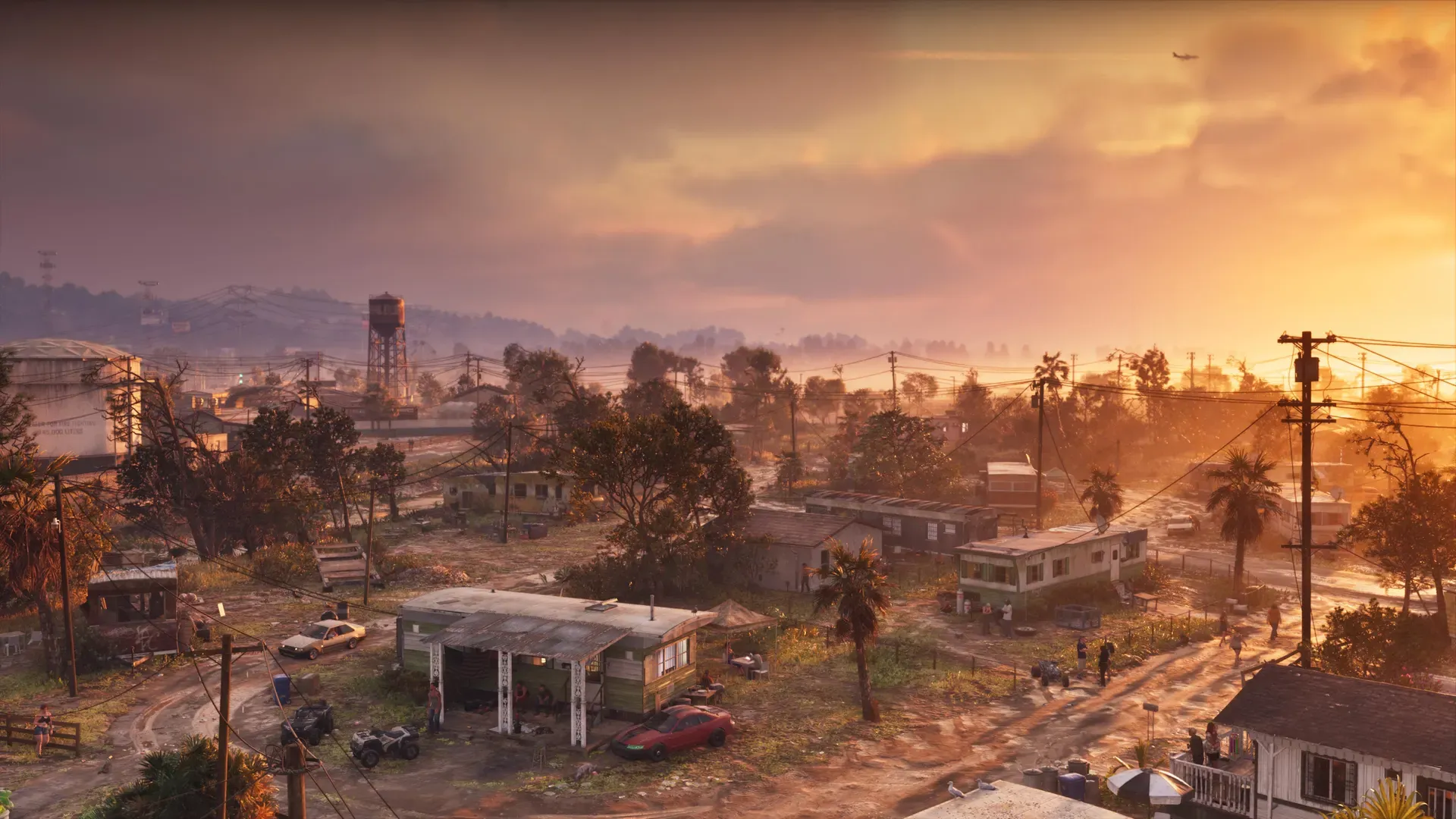

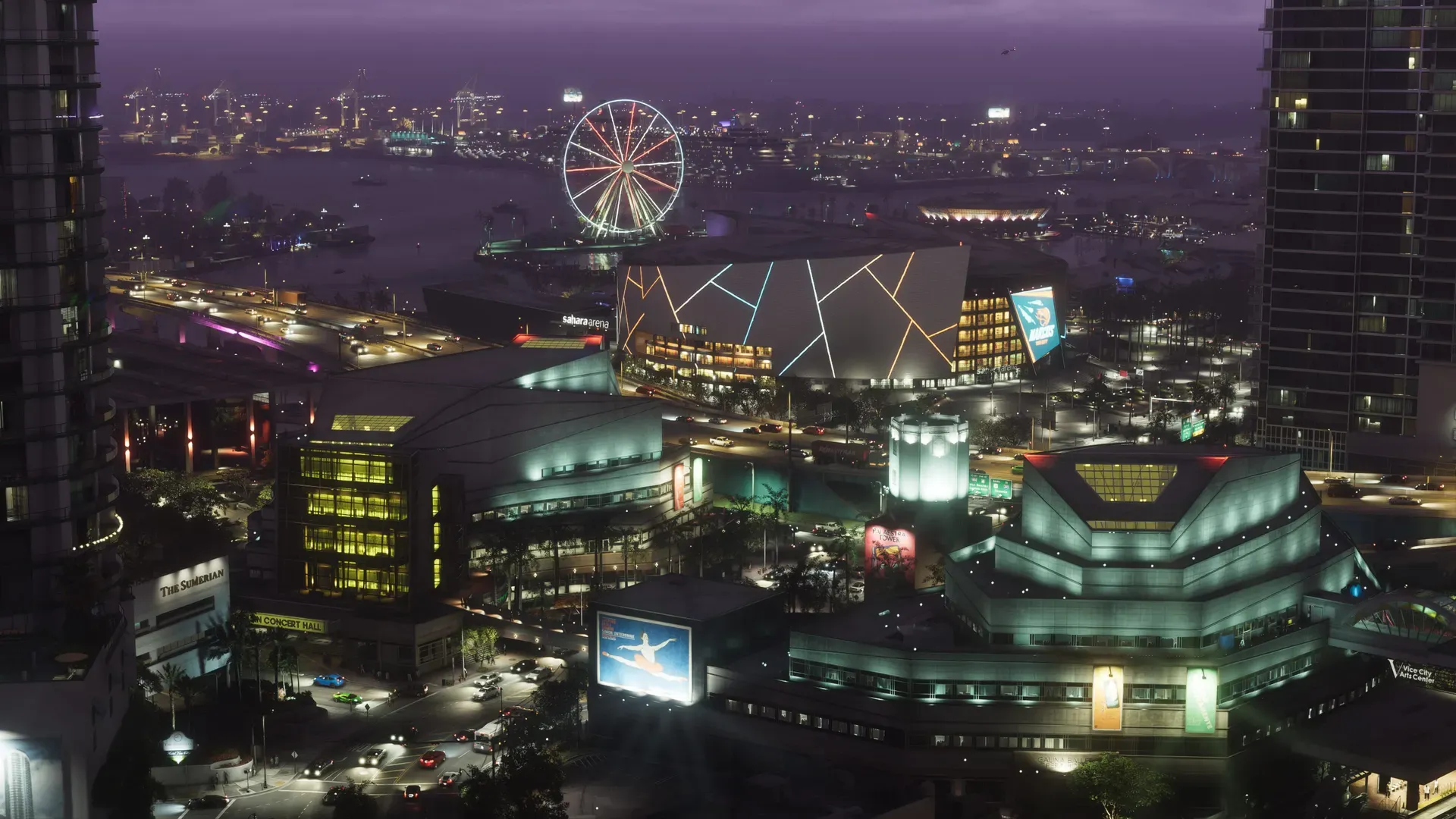
Turn on your TV’s game mode, calibrate HDR on the console and leave the rest at default. Not announced Rockstar hasn’t said which graphics modes, HDR settings or refresh rates GTA 6 supports, and VGC and TechRadar reported that it runs at 30fps at launch. So the settings that matter now are the ones that make any game look and feel right on your TV.
Use your TV’s game mode
Game mode cuts input lag, the delay between pressing a button and seeing it on screen, as Sony puts it. Samsung and Sony TVs can switch to it on their own when a console is connected, but it is worth checking.
| TV | Where to find it |
|---|---|
| Samsung (2025 models) | Settings > All Settings > Advanced Features > Game Mode Settings > Game Mode |
| Samsung (2023 and 2024 models) | Settings > All Settings > Connection > Game Mode Settings, then turn on Game Mode |
| LG | Settings button > All Settings > General > Game Optimizer, on models that have it |
| Sony BRAVIA | Picture mode switches to Game automatically on supported models (see below) |
- Samsung says Game Mode turns on automatically when you connect a console such as a PlayStation or Xbox. If it won’t turn on in the menu, Samsung suggests checking the console is on the right HDMI port.
- LG says Game Optimizer needs the console connected by HDMI with the TV’s input set to it, and is only on select models. Some picture settings lock while it is on.
- Sony says its “Perfect for PlayStation 5” BRAVIA TVs switch to Game mode when you play on a PS5 and back for films, as long as Auto Picture Mode is on.
Other brands use names like Game mode or Low latency; check your TV’s manual.
Let the console switch it for you (ALLM)
Auto Low Latency Mode (ALLM) lets the console tell the TV to switch to game mode.
- PS5: the ALLM option is in Settings > Screen and Video > Video Output, per LG’s support page.
- LG TVs: LG says ALLM can be turned on or off in Game Optimizer. If you want to adjust the picture yourself, LG notes that ALLM set to Auto locks picture adjustment.
Calibrate HDR on the console
HDR calibration tells the console how bright and dark your TV can go. It applies to every HDR game, so it is worth doing once.
- PS5: Settings > Screen and Video > Video Output > Adjust HDR, then follow the on-screen steps.
- Xbox Series X|S: Profile & system > Settings > General > TV & display options > Calibrate HDR for games.
Microsoft also suggests turning off your TV’s energy saving mode and sharpening for HDR gaming.
Not announced Rockstar hasn’t said whether GTA 6 supports HDR. Calibrating now does no harm either way.
120Hz and VRR, and what they mean for GTA 6
120Hz output and VRR (variable refresh rate) help games that run above 60fps or vary their frame rate.
- PS5: 120 Hz Output and VRR are under Settings > Screen and Video > Video Output. Sony says 4K at 120Hz needs an HDMI 2.1 port and the console’s own cable or an Ultra High Speed one.
- Xbox: TV & display options has Refresh rate, and Allow variable refresh rate is under Video modes. Microsoft says these only appear when your TV supports them.
Analysis With GTA 6 reported at 30fps at launch and no performance mode announced, 120Hz won’t change how GTA 6 plays on day one. Turn these on if your TV supports them, since other games use them and a later GTA 6 update could too.
Check the HDMI port and cable
- Analysis Use the HDMI port your TV marks for games or 4K 120Hz, if it marks one. Samsung notes that Game Mode may not turn on if the console is in the wrong port.
- Use the HDMI cable that came with the console, or an Ultra High Speed cable, as Sony advises for 4K at 120Hz.
What to do on launch day
- Check that the TV is in game mode when GTA 6 starts.
- If the picture looks washed out or too dark, run the console’s HDR calibration again.
- Look in GTA 6’s own settings menu for brightness and HDR options. Not announced Rockstar hasn’t shown the menu yet; we will add what it offers once the game is out.
For the rest of the console setup, from storage to Rest Mode downloads, see GTA 6 launch day setup. To compare consoles, see GTA 6 on PS5 or Xbox.
Common questions
Does game mode make the picture worse?
Sony describes game mode as the setting that minimises input lag, and LG notes that some picture settings lock while Game Optimizer is on, so the picture can look a little different from your film settings. Analysis For a game, the faster response is usually worth it.
Do I need a 120Hz TV for GTA 6?
No. GTA 6 is reported to run at 30fps at launch, which any TV can show. A 120Hz TV helps other games that run faster.
Should I use 4K or 1080p output?
Analysis Use the highest resolution your TV supports. Not announced Rockstar hasn’t said what resolution GTA 6 renders at.
Related pages
 Best DualSense settings for GTA 6
 Best Xbox controller settings for GTA 6
 GTA 6 platforms and requirements
 GTA 6 file size: how big is the download?
 How to add more storage to your PS5 for GTA 6