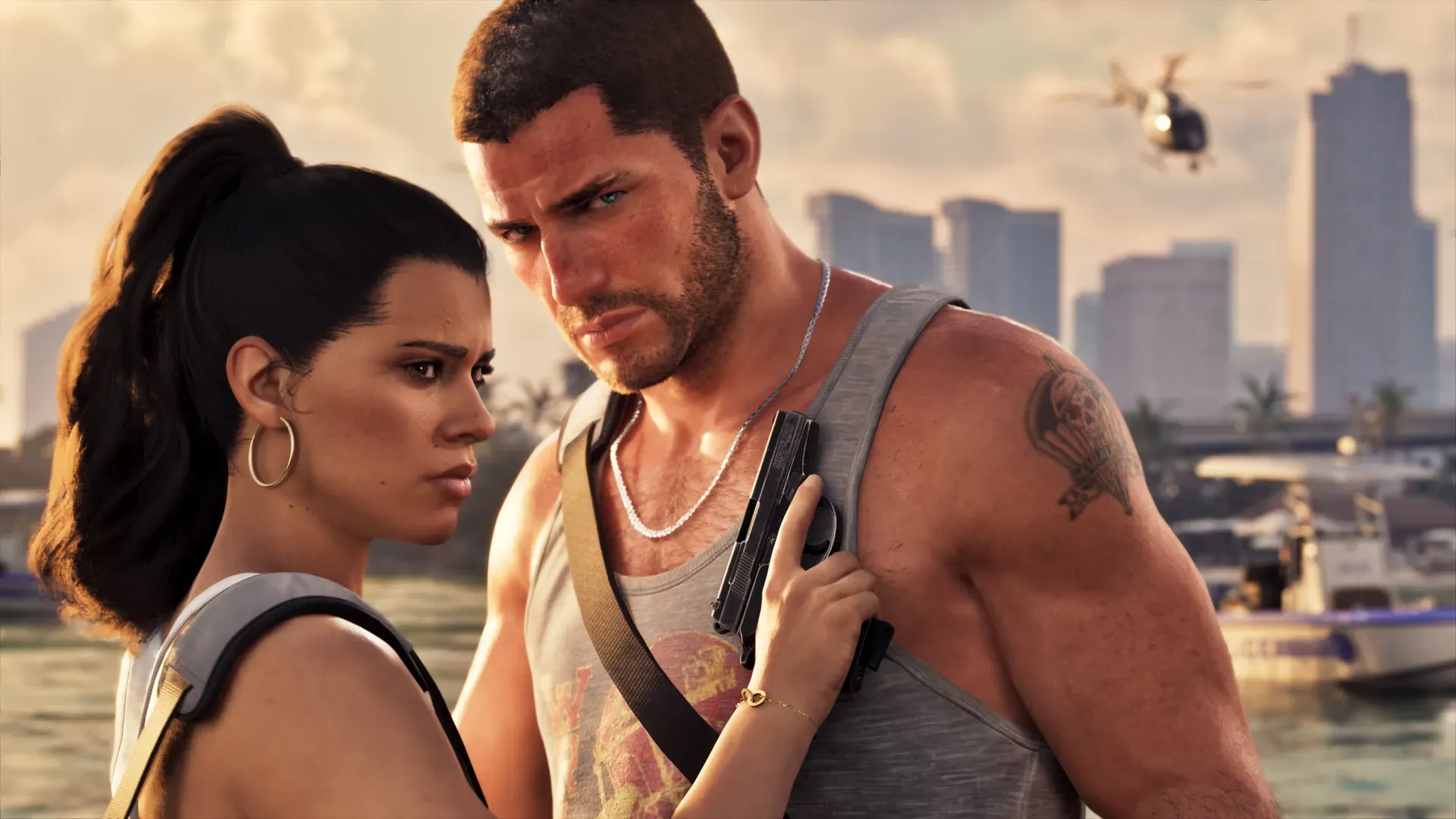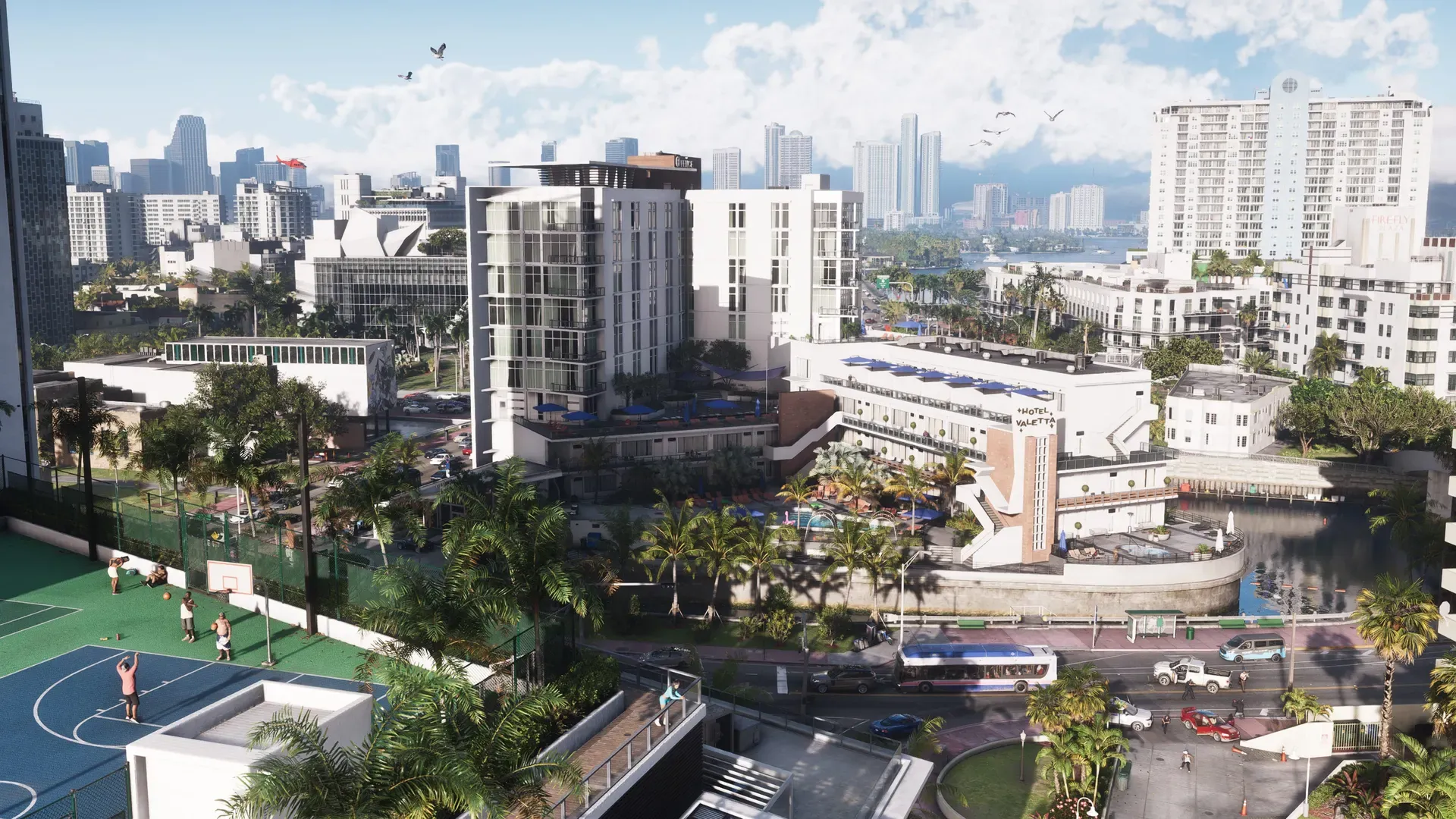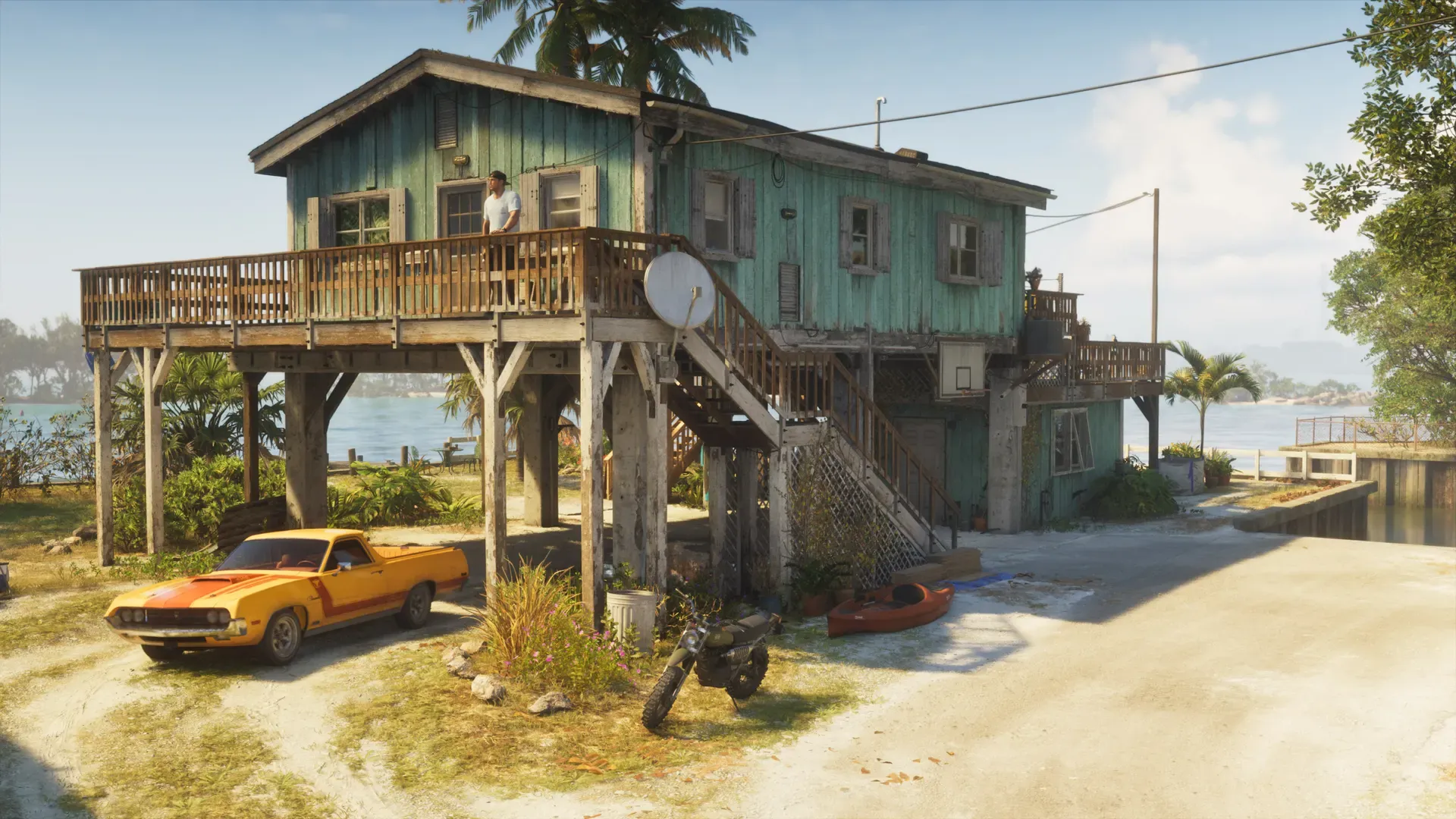


Turn on Remote Play in your PS5’s settings, install the PS Remote Play app (or use a PlayStation Portal), and sign in with the same account. Your PS5 then streams what it is running to that device over the internet. Confirmed GTA 6’s PlayStation Store listing marks it as Remote Play supported.
What Remote Play is, and what it isn’t
Remote Play sends the picture from your own PS5 to another screen and sends your button presses back. The game still runs on the console at home, which has to be switched on or in rest mode.
- Confirmed Sony says PlayStation Portal needs a PS5, and the console must be powered on fully or in rest mode.
- It is not cloud streaming. Sony’s cloud streaming is a separate PlayStation Plus Premium feature for selected games.
- It does not make GTA 6 run on a phone, PC or Mac. Not announced GTA 6 is only announced for PS5 and Xbox Series X|S; see is GTA 6 on PC? and GTA 6 platforms and requirements.
This guide covers PlayStation only.
Step 1: turn on Remote Play on the PS5
- Go to Settings > System > Remote Play.
- Turn on Enable Remote Play. Sony notes you can set this for each user, so turn it on for the account you will play on.
Sony recommends updating the PS5 to the latest system software before you start.
Step 2: let it start from rest mode
So you don’t have to leave the console fully on, set up rest mode:
- Go to Settings > System > Power Saving > Features Available in Rest Mode.
- Turn on Stay Connected to the Internet.
- Turn on Enable Turning on PS5 from Network.
Analysis These are the same rest mode settings that let the console download updates overnight, so if you followed our launch day setup they may already be on.
Step 3: set up your device
Phone or tablet
Download PS Remote Play from the App Store or Google Play, open it, select Sign In with the account you use on the PS5, then select PS5. Sony lists these minimums:
| Device | What Sony lists |
|---|---|
| iPhone and iPad | iOS 14 or later (iOS 14.5 or later for a DualSense) |
| Android phones and tablets | Android 9 or later for touch controls, Android 12 or later for a DualSense |
To stream over mobile data, open the app’s Settings > Mobile Data > Use Mobile Data. Sony warns that Remote Play uses far more data than most video services, so watch your allowance.
Windows PC or Mac
Install the PS Remote Play app and sign in the same way. Sony lists Windows 10 (64 bit) or Windows 11, and macOS Big Sur or later. On a PC the DualSense connects by USB.
PlayStation Portal
The Portal is Sony’s handheld built for Remote Play, with an 8 inch full HD screen and console quality controls. Sign it in with the same account as your PS5 and follow the pairing steps on screen.
Controllers on a phone
Sony lists these options for the app:
- DualSense, DualSense Edge or DUALSHOCK 4, paired over Bluetooth
- Backbone One PlayStation Edition, on iOS 15 or later and Android 10 or later
- On screen touch controls
Analysis An open world game uses most of the buttons, so a controller will feel much closer to playing on the TV than touch controls.
Connection speeds
| Sony’s figure | |
|---|---|
| Minimum | 5 Mbps upload and download |
| Recommended | 15 Mbps or more upload and download |
Sony’s tips for a smoother stream:
- Connect the PS5 to the router by cable if you can.
- Use 5GHz Wi-Fi for the device, and Sony suggests turning off band steering on the router for the Portal.
- Pause downloads on other devices while you play.
- Test the connection at home before you rely on it elsewhere. Sony notes a device may not find your console if you haven’t signed in for a while.
Limits Sony lists
Sony’s Remote Play help page says you can’t use these at the same time as Remote Play: Share Play, PlayStation Plus Premium game streaming, playing a Blu-ray or DVD, PS VR2 or PS VR mode, playing music and watching video services.
- Games that need a VR headset, or peripherals other than a supported controller, don’t work with Remote Play.
- On iOS, Sony says background streaming stops after 5 minutes.
- DualSense haptics, adaptive triggers and controller audio vary by device and may not be available.
- Remote Play uses UDP port 8572, and Sony says it may not work on NAT Type 3.
- Other people at the console may see “Remote Play connected” on screen. You can hide this with Hide Remote Play Connection Status in Settings > System > Remote Play.
Not announced Rockstar hasn’t said whether any part of GTA 6 behaves differently over Remote Play. We will update this guide if it does.
Common questions
Can I play GTA 6 on PlayStation Portal without a PS5?
Not announced The Portal’s own Remote Play needs a PS5. Sony’s cloud streaming on the Portal is a PlayStation Plus Premium feature that covers selected games, and Sony hasn’t announced GTA 6 for it.
Can I use Remote Play on another console?
Sony says a PS5 or PS4 can act as the Remote Play screen over a wired home network, as long as both consoles use the same PlayStation account.
Can I play from outside my home?
Yes, over Wi-Fi or mobile data, as long as the connection meets Sony’s speeds. Sony notes that public Wi-Fi quality is outside your control, so test at home first.
Is Remote Play the same as streaming to Twitch or YouTube?
No. Remote Play is for you to play the game on another screen. To broadcast GTA 6 to viewers, see how to stream GTA on PS5. For the picture at home, see best TV settings for GTA 6.
Related pages
 How to play GTA 6 with Xbox remote play
 GTA 6 PC release date
 Best DualSense settings for GTA 6
 How to play GTA 6 on two PS5s